
Best iptv tutorials
ANDROID :
Installing IPTV Smarters Pro on ANDROID
Follow these simple steps to get IPTV Smarters Pro up and running on your Android device in just a few minutes.
Step 1 — Download the app
Install the IPTV Smarters Pro application from the link provided.
Step 2 — Launch the app
Open IPTV Smarters Pro and head to the login screen.
Step 3 — Enter your credentials
Type in the login details you received after subscribing, then tap “Add User.”
Step 4 — Wait for the playlist to load
Give it a few seconds while your channels and content sync.
Step 5 — Open Live TV
Tap the “Live TV” icon on the main dashboard.
Step 6 — Choose a category
Select the channel group or category you’d like to browse.
Step 7 — Start watching
Tap a channel name to begin playback, then double-tap the preview window to switch to full-screen mode.
WINDOIS / MAC :
Installing IPTV Smarters Pro on Windows
Step 1 — Download the IPTV Player
Get the IPTV Smarters Pro application for Windows 11 by visiting the official download page. Always download from a trusted source to keep your device safe.
Step 2 — Find the downloaded file
The installer is usually saved in C:\Users\[Your Username]\Downloads as an .exe file (for example, IPTVSmartersProSetup.exe).
Step 3 — Run the installer
Double-click the .exe file to start the installation. If Windows displays a security prompt, select “Yes” or “Run.”
Step 4 — Follow the setup wizard
The installer will walk you through a few quick choices:
- Pick your preferred language
- Accept the terms and conditions
- Select an installation folder (the default is recommended)
- Decide whether to create a desktop shortcut
Step 5 — Finish the installation
Click “Finish” once the setup has completed.
Step 6 — Open the app
Launch IPTV Smarters Pro from the Start menu or your desktop shortcut.
Step 7 — Log in
Enter your IPTV Smarters username and password. Can’t remember them? Check your subscription email or reach out to support.
Step 8 — Start streaming
You’re all set — enjoy unlimited access to premium IPTV content. 🎬
Installing IPTV Smarters on macOS
Step 1 — Download the application
Download the IPTV Smarters app for macOS from the official download page.
Step 2 — Find the downloaded file
The file is normally saved in ~/Downloads with a .dmg extension (for example, IPTVSmarters.dmg).
Step 3 — Mount the disk image
Double-click the .dmg file to open the installer window.
Step 4 — Drag and drop
Drag the IPTV Smarters icon into your Applications folder.
Step 5 — Eject the disk image
Right-click the mounted image and choose “Eject.”
Step 6 — Launch the app
Open IPTV Smarters from the Applications folder.
Step 7 — Log in
Sign in using your 4K-LiveIPTV subscription credentials.
Step 8 — Start streaming
Explore the library and enjoy smooth, seamless streaming on your Mac. 🍿
FIRE TV STICK :
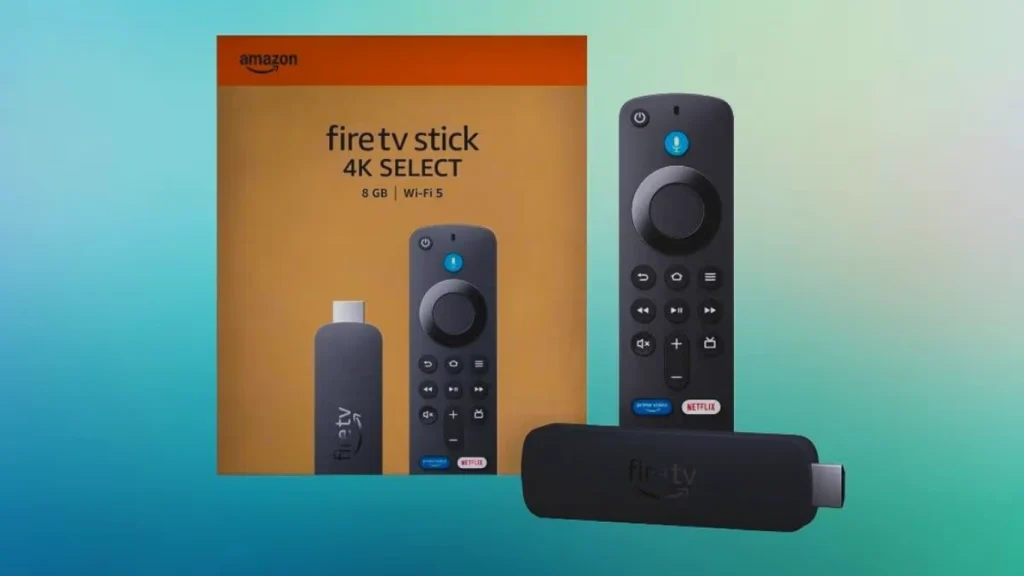
How to Set Up IPTV on Fire TV Stick
Step 1 — Open Search
From your device’s home screen, navigate to the Search option at the top.
Step 2 — Select Search
Click on Search to open the keyboard.
Step 3 — Look for Downloader
Type in “Downloader” and select it from the results.
Step 4 — Choose the app
Pick the Downloader application from the list.
Step 5 — Install it
Click Download and wait for the installation to begin.
Step 6 — Open the app
Once installation finishes, click Open.
Step 7 — Return to Settings
Go back to the home screen and open Settings.
Step 8 — Access device options
Select My Fire TV.
Step 9 — Open Developer options
Click on Developer options.
Step 10 — Allow app installs
Select Install Unknown Apps.
Step 11 — Enable Downloader
Find the Downloader app in the list and click on it.
Step 12 — Confirm
This switches Unknown Sources ON for Downloader, which allows sideloading on your device.
Step 13 — Launch Downloader
Head back and open the Downloader app.
Step 14 — Grant permission
Click Allow.
Step 15 — Confirm again
Click Allow one more time if prompted.
Step 16 — Enter the download URL
Type the following address exactly as shown, then click Go:https://www.iptvsmarters.com/smarters.apk
Step 17 — Wait for the download
Give it a few moments while the file downloads.
Step 18 — Install the APK
Click Install.
Step 19 — Finish up
Click Done when the installation completes.
Step 20 — Open IPTV Smarters
Launch the app and choose Connect with Xtream Codes API.
Step 21 — Log in
Enter the IPTV Smarters login details we sent you via WhatsApp, email, or live chat — then start streaming. 🎬
FOR LG SMART TV :
Step 1 — Open the LG Content Store
Press the Home button on your remote to open the main menu, then go to the LG Content Store (or App Store, depending on your LG model).
Step 2 — Search for the app
Use the search bar (keyboard or voice search if available) and type IPTV Smarters Pro.
Step 3 — Install IPTV Smarters Pro
Select the app from the results, then click Install (or Get).
If a confirmation message appears, choose Yes / Proceed, then wait for the installation to finish (this may take a moment depending on your internet speed).
Step 4 — Launch the application
After installation, return to your apps list and open IPTV Smarters Pro.
Step 5 — Sign in with your subscription details
When the app opens, enter the credentials provided by your IPTV service:
- Username: the username from your subscription
- Password: the password linked to your account
- Portal URL (if required): the portal address sent by your provider
Then click Login / Connect to continue.
Step 6 — Start streaming
Once logged in, browse Live TV, movies, and series, and enjoy features like the TV guide (EPG), language options, and customizable settings.
MAC / IOS
How to Set Up IPTV Smarters on iPhone/iPad (iOS) Using Smarters Player
Step 1 — Download the app
Install Smarters Player Lite from the App Store using this link:
https://apps.apple.com/in/app/smarters-player-lite/id1628995509
(Or search Smarters Player Lite directly in the App Store.)
Step 2 — Open the application
Launch the app after installation to access the login/setup screen.
Step 3 — Add your subscription details
Enter the IPTV Smarters login details you received after subscribing, then tap Add User.
Step 4 — Wait for content to load
Give the app a few seconds to sync and load your channels.
Step 5 — Open Live TV
From the main menu, tap the Live TV icon.
Step 6 — Choose a channel group
Select the category/group you want to watch, then browse the channels inside it.
Step 7 — Play a channel and go full screen
Tap the channel name to start streaming, then double-tap the small player window to switch to full-screen mode.
Step 8 — Enjoy streaming
Once you’re logged in, you can explore Live TV, movies, and series, and use features like EPG (program guide) and other in-app options (availability depends on the app/version).
ROKU :
A) iPhone / iPad (AirPlay)
Step 1 — Enable AirPlay on Roku
- On Roku: Settings → Apple AirPlay and HomeKit
- Turn AirPlay = ON
Step 2 — Connect both devices to the same Wi‑Fi
- iPhone/iPad and Roku must be on the same network
Step 3 — Install IPTV Smarters on iPhone/iPad
- Install Smarters Player Lite (or your IPTV player) from the App Store
- Log in using your subscription details (Xtream API / M3U)
Step 4 — AirPlay to Roku
- Open the channel you want in the IPTV app
- Swipe down (or open Control Center) → tap Screen Mirroring
- Select your Roku
- Your Roku will display your iPhone/iPad screen
B) Android (Screen Cast / Mirroring)
Step 1 — Enable Screen Mirroring on Roku
- On Roku: Settings → System → Screen mirroring
- Set it to Prompt or Always allow
Step 2 — Cast from Android
- On Android: open Quick Settings → Cast / Smart View / Screen Cast
- Select your Roku
- Open IPTV Smarters on Android and play content
C) Windows PC (Miracast)
- On Roku: Settings → System → Screen mirroring → Prompt/Always allow
- On Windows: press Win + K
- Choose your Roku
- Play IPTV on your PC and it will show on Roku
Ready for the Ultimate Stable TV Experience?
Get instant access to a premium, high-speed IPTV server designed to deliver 15,000+ live global channels, sports networks, and 4K movies with 99.9% uptime. Configure your device in minutes.